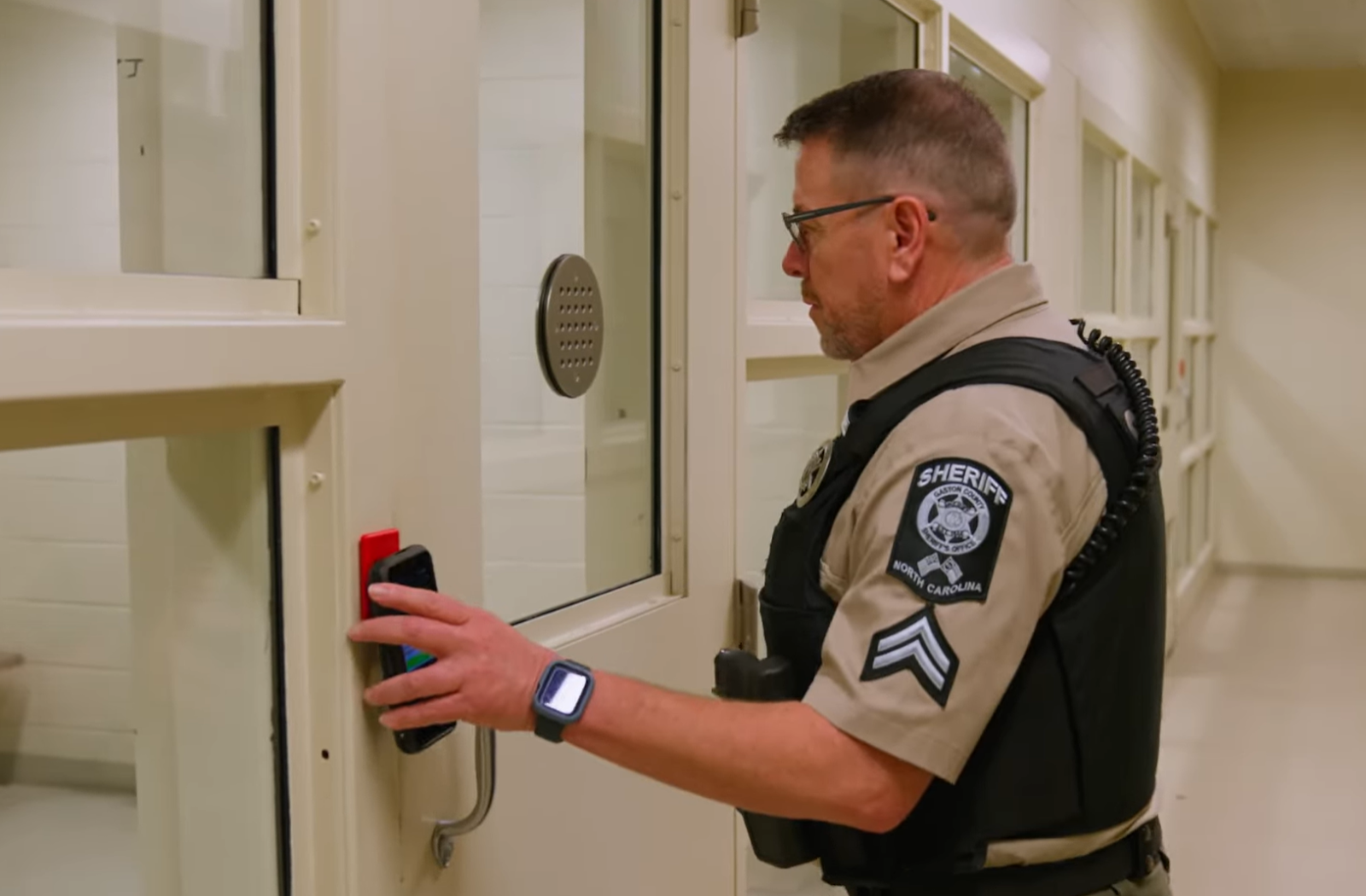
Correctional officers have their hands full with a wide range of responsibilities every day. Some of which they do so often that they have the muscle memory to do them with their eyes closed, while others they have to remind themselves how to do because they only perform the task once a year.
Whether a task is a one-time deal or a recurring responsibility, every action performed inside a jail, prison, or juvenile detention facility must be meticulously tracked and documented to maintain compliance standards and uphold safety protocols.
So, how can supervisors ensure their team is following the correct steps and remaining accountable for the tasks they perform? This blog explores how Command Cloud empowers staff to stay on top of their task management by creating, assigning, organizing, and following through with both their one-time and recurring tasks.
The Tools That Make Task Management Come to Life
To consistently stay on top of all officer tasks, supervisors need quick access to open tasks and a centralized view of task activity across the facility at any moment. Command Cloud delivers this visibility with Mobile Command XR and Mission Command.
Mobile Command XR’s Tasks Module
Mobile Command XR, Command Cloud’s mobile inmate tracking software powered by SPARTAN, allows officers to easily view all tasks assigned to them via the Tasks module in the bottom navigation bar.
Once the Tasks module is opened, tasks are organized into three categories:
- Self-Assigned Tasks: Tasks that an officer creates and assigns to themselves using Mobile Command XR.
- Single Tasks: One-time tasks assigned to the officer, assigned to no officer, or associated with the officer’s filtered location that need to be completed once.
- Scheduled Tasks: Recurring tasks assigned to the officer, assigned to no officer, or associated with the officer’s filtered location that occur on a timed basis
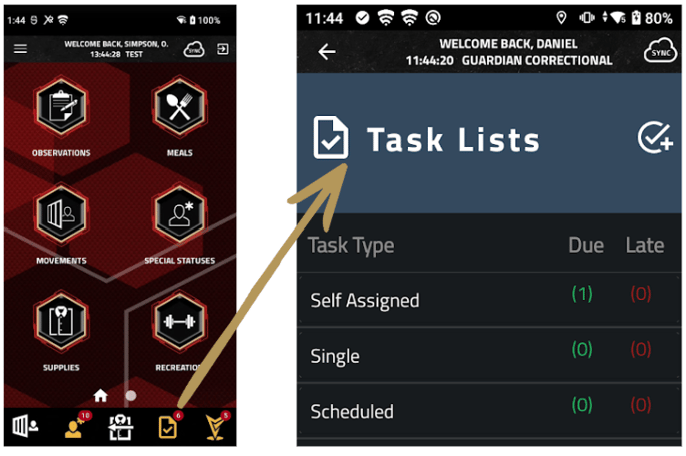
Breaking these tasks into three separate groups gives officers a clear, focused view of what they’re specifically responsible for, what open tasks need attention, and when they’re due—all from the device already in their hand.
But where does the data captured in Mobile Command XR’s Tasks module go?
Mission Command’s Task Management Dashboard
Mission Command is Command Cloud’s Cloud-native application that provides a common operating picture of all data captured in Mobile Command XR. All data captured within the Tasks module translates into digestible information on Mission Command’s Task Management Dashboard.
The dashboard is separated into three tab views, including:
- Active: Displays only the tasks that are currently in progress.
- Scheduled: Displays all scheduled, recurring tasks. As soon as the task becomes due, it will be moved to the Active tab and updates to reflect the next due time.
- Archive: Shows tasks completed within a selected time frame. Note that only completed tasks will be moved to the Archive tab. Any tasks not marked “complete” remain in the Active tab and show a red LATE button under the Status column. Late tasks will stay in the Active tab until completed, then be transferred to the Archive tab.
This empowers users with visibility into every task assigned throughout the facility, not just their own. Each tab is fully filterable to help the user narrow down on the information that is relevant to them, with the added flexibility to export that data as a PDF or CSV report.
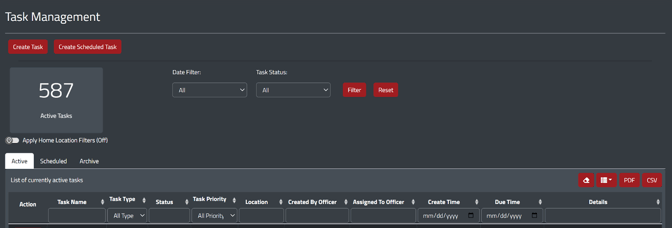
Above is a snapshot of the Task Management dashboard, which defaults to the Active tab, with easy toggling between the Scheduled and Archive tabs. At the top of the dashboard are two red buttons that are crucial to successful task management: Create Task and Create Schedule Task.
How Can I Create and Assign Tasks?
Recognizing that correctional environments operate at a constant fast pace, Command Cloud built its task management capabilities for speed, efficiency, and accountability. As a result, users can quickly create and assign tasks through either Mobile Command XR or Mission Command, depending on the task type.
One-Time Tasks
Creating and assigning One-Time Tasks can be completed in both Mission Command’s Task Management Dashboard and Mobile Command XR’s Tasks Module.
Mission Command’s Task Management Dashboard
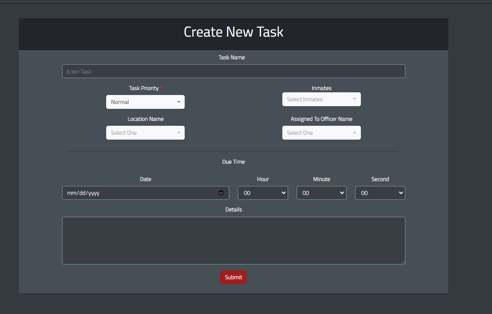 After logging into Mission Command and selecting the Tasks icon from the left-hand navigation panel, users are brought to the Task Management dashboard. From there, they will click the red Create Task button in the top-left corner of the screen. Users can then customize the task by entering key details such as the task name, priority level (Normal, Important, or Critical), location, associated inmates, assigned officer, due time, and any additional notes. After clicking Submit, the task automatically syncs to the assigned officer’s SPARTAN device for immediate visibility and accountability.
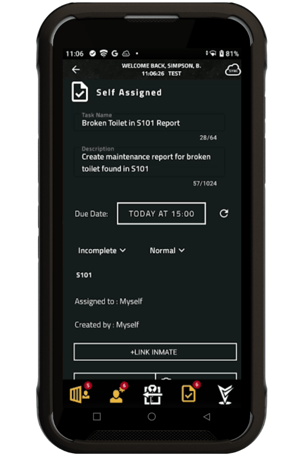
Mobile Command XR’s Tasks Module
Mobile Command XR takes One-Time Tasks a step further by creating One-Time, Self-Assigned Tasks.
Creating One-Time, Self-Assigned Tasks can be done by users simply logging in to Mobile Command XR, selecting the Tasks module from the bottom tray on the home screen, and clicking the checkmark icon in the top right-hand corner. From there, they can customize the task by completing the prompted fields, including the task name, description, due date and time, priority level (Normal, Important, or Critical), location, linked inmate, relevant media, and any additional details. Once the information is entered, pressing Save will create the task and display it on the device with the assigned due date and time.
Recurring Tasks
Unlike One-Time Tasks, Recurring Tasks can only be created and assigned through Mission Command’s Task Management Dashboard.
Mission Command’s Task Management Dashboard
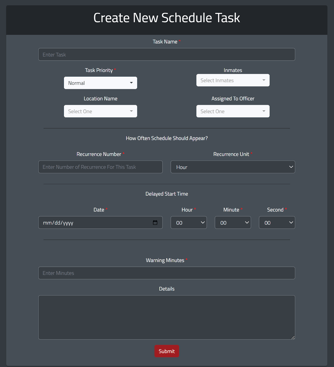
After logging into Mission Command and selecting the Tasks icon from the left-hand navigation panel, users will be brought to the Task Management dashboard, where they will click the red Create Scheduled Task button in the top-left corner of the screen.
They can then customize the task by entering key details such as the task name, priority level (Normal, Important, or Critical), location, associated inmates, assigned officer, recurrence number and unit, delayed start time, due time (which may vary based on the selected recurrence unit), warning minutes, and any additional notes. After clicking Submit, the recurring task will automatically sync to the assigned officer’s SPARTAN device, ensuring continued awareness and timely completion.
Recurring tasks can also be scheduled multiple times within a day, week, or month. This method allows for quick and efficient scheduling without creating separate recurring tasks for each occurrence.
To configure a recurring schedule, users select Create Scheduled Task in the top-left corner of the screen and complete the required fields. From there, enter the recurrence number to define how often the task should occur and adjust the recurrence unit to day, week, or month based on the desired frequency. Once this is set, the Due Time field appears, allowing users to add multiple due times and specify the corresponding dates and times for each occurrence. After clicking Submit, the scheduled tasks automatically sync to the assigned officer’s SPARTAN device, ensuring they are delivered and tracked in real time.
How Do These Tools Help Improve Officer Accountability?
When configuring recurring tasks in Mission Command, users complete three key fields that determine when tasks become visible and actionable:
- Warning Minutes specify how far in advance the officer is notified
- Delayed Start Time determines when the task appears in Mobile Command XR
- Due Time establishes when the task moves into the Active view in Mission Command
These settings ensure officers are notified at the right moment, giving them the time they need to prepare and complete responsibilities without disruption.
For example, if a task’s Delayed Start Time is set for 16:00 but the officer should be notified two hours earlier, the Warning Minutes would be set to 120. The task would then automatically appear in the officer’s Mobile Command XR Tasks module at 14:00, providing clear direction and reducing the risk of missed or rushed duties.
By contrast, one-time tasks appear immediately upon assignment, ensuring officers have full visibility into upcoming responsibilities—even if the due date is days away. Officers can easily view the task type, priority, due date, and related details, reinforcing clarity and ownership.
Together, these capabilities strengthen officer accountability by establishing clear expectations, improving communication, and ensuring every responsibility is documented from assignment to completion. Tasks are no longer informal reminders or paper-based checklists—they are structured, prioritized, and tracked in real time. Officers always know what is expected of them, when it is due, and how urgent it is—eliminating uncertainty and reducing the risk of critical duties being overlooked.
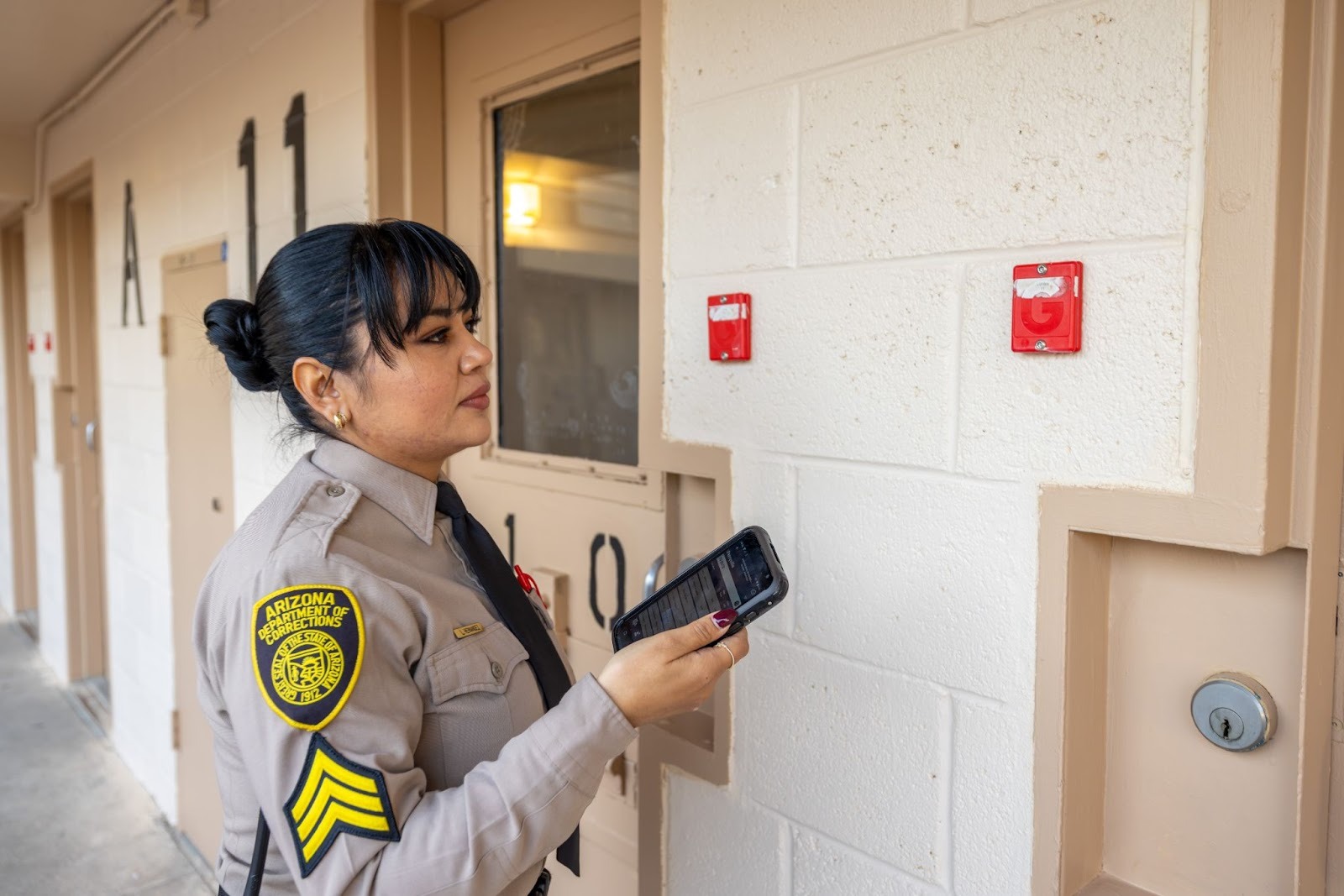
By streamlining both one-time and recurring responsibilities, Command Cloud’s Task Management ensures every task within the facility is clearly defined, assigned, and completed with full visibility. Real-time syncing between mobile and cloud platforms creates a comprehensive, defensible audit trail for every action, enabling supervisors to quickly identify overdue or incomplete work and take proactive steps before gaps impact safety, compliance, or operational efficiency.
This structured, solution-driven approach strengthens both individual and team performance, reinforces accountability at every level, and promotes consistent adherence to policy and procedure. As a result, officers can perform their duties with greater clarity, confidence, and reliability—while agencies benefit from improved compliance, stronger operational discipline, and greater organizational transparency.